Ubuntu insights, Programming in groovy, java, et als!

Thursday, March 08, 2012

Coffee with Linux #2 - The Shell

Generally, users interact with the Operating System by clicking on icons, menus and buttons. This is called Graphical User Interface (GUI). Apart from this, there is also an other way to interact with the computer using a command line interface (CLI) which is purely by typing in commands to get the task done. Think of it the DOS command prompt in the world of Windows. One can open Notepad application either by selecting it from the start menu or by simple typing in notepad on the windows prompt. In a parallel context, the command line interface on Linux that enables human-machine interaction is called 'The Shell'. That being said, it is not technically correct to draw a comparison between the Windows DOS prompt and the Linux shell because the shell is capable of doing much much much more than what can be done from a regular dos prompt on windows.

The shell has many variants, some of which are 
  • C Shell
  • Korn
  • Bash
  • Z shell
Bash is used as a default for many Linux distros that are available today. In almost all Linux distros you find an option called terminal emulator (or simply the terminal). The terminal is merely a window that runs the shell program within it.

Standard input & Standard output

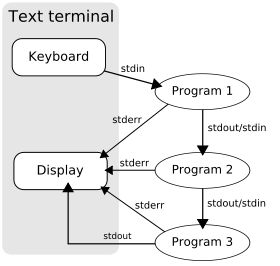
What you type in to the terminal on Linux is called the standard input and the output of the command typed in is called the standard output. This happens via streams. Whatever is typed in, is taken onto a stream (stdin) which is a continuous set of bytes, likewise the output is also written onto a stream (stdout) that is by default shown on the screen. You can redirect this stream, the standard output on screen onto a file or anywhere else. Example :

$ ls > outputOfLSCommand.txt


Speaking of streams there is a separate stream for carrying the error output (stderr). Likewise you can also redirect the standard input from a file instead of defaulting it to the keyboard.


Piping the output

Just the way the output is redirected, the user can also pipe the output. Piping generally happens when the output of one command is given as input to an other command. Example

$ ls | rev


In this command the output of list directories command as a String is given as an input to the rev (the reverse) command which displays the output text in a reversed way.

*********** End of Tutorial 2 ***********


See Introduction Tutorial 1: Coffee with Linux #1 - Head Start


Friday, March 02, 2012

Find RSS Feed URL of a Webpage

Given a URL of a web page, one can programatically search through the meta tags of the webpage's content for alternate URL links (like atom or RSS feed links for the same) to thereon further use them to parse and process the content of the webpage. Typically this is the way Google Reader works. Here I present a very simple implementation of the same in pharo smalltalk.


Object subclass: #RSSReader
instanceVariableNames: ''
classVariableNames: ''
poolDictionaries: ''
category: 'VamsiExperiments'


getURLContent: url
  "## Comment : Supply the url String of the webpage,
 
   ## example: http://nerdysermons.blogspot.in"
| urlContent |
urlContent := (url asUrl retrieveContents contents asString).
^urlContent


findAlternateLinksInUrlContent: urlContent
  "## Comment : The above fetched page content to 

   ## be passed here to get an ordered collection 
   ## of alternate links"      
| links|
links := OrderedCollection new.
urlContent linesDo:  [:line |
(line findString: '<link rel="alternate"') > 0
ifTrue: [
links add: (line findTokens:'"' includes: 'http://').
].  
].
^links.

Wednesday, February 29, 2012

Bypass the Linux Grub to retrieve Windows Bootloader

Rececntly I had messed up with the Linux partitions on my laptop because of which the grub rescue wasn't letting me login to any of my operating systems. This is a simple step that I came across to bypass the Linux grub to retrieve back my Windows Boot screen back. Simple yet helpful.

1) Insert a Windows 7 upgrade disc.
2) Enter boot menu to boot from CD/DVD.
2) Proceed to repair Windows. (Caution : Do not reinstall Windows)
3) Open command prompt
4) Type in
Bootrec.exe /FixMbr
which reports a quick reply reporting, "operation ended successfully"
5) Remove disc and Reboot from HDD.

Tuesday, February 14, 2012

Coffee with Linux #1 - Head Start

Introduction 

It is often a gigantic task for a newbie to grasp concepts of Linux, not because they seem nerdy but mostly because there are way too many facets to the OS and it is surrounded by a humongous number of other terms which usually tend to scare away a learner in the first glimpse. Most of the time, beginners find it hard to find a starting point to learn Linux. 

Coffee with Linux will be a series of blog posts which will touch base concepts at a very superficial level. The blogposts in this series will usually be the gateways for you to enter into the world of Linux. The series will eventually run into posts that will describe the usage of commands from terminal. The learning will not be in bookish order, it will rather be in the order of the things I learnt/learn/will learn. So let's get started!


Li'l history

Unix was an operating system started as an academic project, pioneered by the likes of  Dennis Ritchie and Ken Thompson, at AT&T's Bell labs during the late 1960s. It gained popularity and different communities and groups were picking up unix and developing their own versions of Unix.  One such version was Minix which was supposedly a minimal Unix version, which was written by Andrew S. Tanenbaum. Minix was used in universities to teach computer science. Linus Torvalds picked it up, contributed to the development of an open source Kernel and called it Linux. 


Distros

As Linux is open sourced, anyone can pick up the source code and develop a version of his own. Thousands of distributions have emerged since the last couple of decades. To name a few, Redhat, OpenSuse, Ubuntu, Lubuntu, Kubuntu, Bodhi Linux and TinyCore are some known distros. To know about the different distros of linux, visit  http://distrowatch.com 


Understanding the OS

An operating system typical has three layers. 


Environment (The Top Layer)
This layer in very raw terms deals with applications that interact with the user. Terms like KDE, GNOME and UBUNTU's UNITY fit in here. They are typically the desktop environments and Linux gives the user complete flexibility to use any of these desktop environments. If need be, the user can even chuck out this desktop environment layer and stick to the default command line interface. 

Example to Ring a bell : Desktop themes, icons, toolbars, etc.


Kernel (The Middle Layer)


Kernel is an abstraction layer that co-ordinates the applications with a system's hardware and resources. An operating system exists only because of its kernel which usually takes care of all the OS specific operations like process, memory and device management. It is completely 
written in C and can be downloaded at  http://kernel.org/

Example to Ring a bell : Running two or more applications at a time and multitasking on them.


System Resources (The Lower Layer)


File System, memory and all hardware specific physical matter come under this layer. 

Example to Ring a bell : The presence of a graphic card to play high end games. 


------------ End of tutorial 1 -----------


Thursday, February 02, 2012

The Art of Test Driven Development

For the very for first time, I have dabbled myself into the practices of Test Driven Development. I must admit that I am completely bowled over by the experience. For more than an year, I had been reluctant to adapt the concept of unit tests as I mistook writing them as a programmer's lack of faith in the code he pushes in but I eventually realized that I could NEVER BE MORE wrong.


I have long had this evil habit of quick prototyping where in all I care about is the end result. In this process, what starts off as a script evolves into neatly refactored block closures and methods, methods to classes & objects and classes to packages. In spite of starting to code with a basic design in mind, it becomes very hard to adhere to the architecture and design with this bottom-up approach as it solely aims at achieving a result without considering the means to achieve it. Hence the code quality might short fall of standards as it ought to be. Also, this involves constant rework. Though a quite conventional approach and a pleasure to begin with, this method is bound to inflict pain at later stages when the code base evolves into a dinosaur and becomes hard to maintain.


Test Driven Development on the contrary might seem annoying at the start to code with but eventually pays off. TDD is all about starting to code keeping in mind the unit tests that are going to be written. The core code base and the xunits are written in tandem with each other. They go hand in hand. It appears like programming in two places at a time. You code for a method in the base class and write its corresponding test in the testcase and run it simultaneously. With TDD, it is like thinking in two directions at a time. As a result of coding in tandem with the unit tests, the very initial draft of code itself begins to look like what it would seem to look like after two or three cycles of rework. Very neat, well re-factored, modularized, extensible and testable. The code written in this manner is more reliable because the unit tests enforce the programmer to code keeping in mind the exceptional scenarios, exposing all the permutations and combinations in which a piece of code could behave. As a result of this, the bugs in the final delivery will dwindle down considerably.


The number of unit tests increase over a period of time along with the code. All the testcases written could be run on a periodic basis to ensure that any newly committed code will not break the functionality of the existing code base. This diminishes the scope for regression issues and hence adds to scalability and maintainability of code. 


Very often it becomes difficult for a newbie to get a hang around code that is already written. Even in such cases testcases help because unit tests themselves act as informal documentation to the classes and methods used. Adding to that, as the code grows in size, the need to use a debugger eventually reduces provided the code is covered by diligently written testcases. 

TDD is an elegant art. Practice it! Preach it!, to everyone who aims to be a quality programmer. For, it is a priceless feeling to experience the 'aha' moment when you look at your sexy monstrous code base that says "All tests passed".

Monday, January 23, 2012

Find Source code Line Numbers of Methods at Runtime


Comparing a source file and a runtime equivalent object of the class, here is a ten liner groovy script that determines the line numbers of every method inside a class. A plausible approach to do this in java is is to throw a stacktrace explicitly wherever needed and examine it to determine the line number at the point of execution. This I find is too clumsy a way. One can also take an other approach by parsing the source code file, creating a tree node structure and manipulate it but then the problem with this approach is that one has to reinvent the whole wheel again.

Groovy's dynamism comes to rescue here exposing the runtime object to the programmer during execution. At runtime, one can inspect an object, study its methods and properties and manipulate them as per the need. This can also be done in java using the Reflection API but I find it too monstrous and verbose. I resort to groovy instead. Here's the ten liner script for the same.

//supply the source file path, the only input to the script
def sourceFilePath = 'C:\\Temp\\GroovyUtils\\Sample.groovy'

//a map that stores method names vs line numbers as key val pairs
def methodToLineMap = [:]

//find all the methods of the Sample class and assign default line number as 0 first.
def listOfMethods = new Sample().metaClass.methods*
listOfMethods .name.sort().unique().each{
    methodToLineMap.put(it,0)
}


//parse src file to find the line numbers of methods & store line number in the methodMap
def idx = 0
new File(sourceFilePath).eachLine{ line ->
    idx++
    methodToLineMap.keySet().each{method ->
        if(line.contains(method)){
            methodToLineMap[method] = idx
        }
    }
}

//print the elements of method vs line number map
methodToLineMap.each{
    if(it.value!=0)
        println it
}

PS : You can also supply a java source code file (in sourceFilePath) to find out the line numbers of the java class's methods but ensure that the .class file is on the classpath while running the script.

Tuesday, January 17, 2012

Windows 8 - (Dev Build) Review So Far


I just experienced Windows 8, a leaked version from the dev build beta archives, on my friend's laptop. If there is one adjective to describe it, I'd go for the word "different". I personally felt that the tablet-ish aspect of its UI certainly looks elegant with all the native MS-zune like Metro-style interface but I am afraid that it would certainly compromise the desktop experience. A scroll though between panels is obviously easier on a tablet because of the touch. On the contrary I find it a pain in the butt to move my mouse to the tiny scroll bar below to navigate between the home panels. The tablet targeted applications provided by default are brilliant, like the RSS/News feed reader, Picstream, Paintplay, etc.
Users are likely to face hassles until they get used to it. First and foremost of all, as you login to the system you are not directed to a desktop screen, instead you are directed onto a tablet like home screen. 
To see the Windows 7 like desktop, you need to select the desktop launcher from the home screen. When an application or external software is installed, instead of the shortcut being dropped onto the desktop, a similar such launch icon will be dropped onto the panels. Of course you can manually drop the shortcut onto the desktop too. Secondly, there is not even a slightest trace of the conventional "All Programs" type start menu within the desktop. So if you heavily rely on the Start menu - mouse click way of launching your applications, well, you might hate Windows 8. But good news for the keyboard freaks who rarely use the mouse to launch apps. Windows 7 start menu search is extended further to make it look the unity panel of Ubuntu 11.04 and above. So applications can be launched easily by hitting the windows key and typing in the name of the app to be launched.

Some other changes in the UI include addition of an abnormally huge toolbar (as in MS office apps) in the FIle Explorer. Windows task manager has changed, looks good but again, it is not too intuitive to a conventional Windows User in its first sight. Some other minor changes in alerts are also evident. 

As of now, I am ignorant of the intricacies of this version of Windows OS, but from an eagle eye's perspective, the speed and performance seem descent enough, just like its predecessor. Nevertheless, I wouldn't go too far exaggerating that Windows 8 is immaculate because it isn't. I am not as thrilled as I was when I experienced Windows 7 for the first time. It is too good in some aspects and atrocious in some other. I hope the annoying aspects of it are answered in the coming build versions. So to wrap it up, I stick to the word, different. Yes!, Windows 8 is different, a lot different and it has changed from its former versions. It depends on how the users tune themselves with this change.
